
Lesson 01: Number Systems — Binary, Hexadecimal, and You
Part 0: Foundations · Estimated time: 45 minutes Prerequisites: None — this is where it all begins! You will learn: Binary, hexadecimal, decimal conversion, bit/nibble/byte terminology, bitmasks You will build: A demo ROM that visualizes hex color values in Stella
Introduction
Before we write a single line of assembly code, we need to learn the language that computers actually speak: numbers. Not decimal numbers like we humans prefer, but binary and hexadecimal — the two number systems that every assembly programmer must think in fluently.
Why does this matter? The Atari 2600 has no strings, no floating-point math, no objects — just bytes. Every color, every sprite pixel, every sound, every joystick direction is encoded as a pattern of 8 bits. To program the 2600, you need to see $1A and immediately know what color that is. You need to look at %10110100 and know which bits are set. This lesson gives you that superpower.
By the end of this lesson, you'll convert between binary, hex, and decimal in your head, understand why programmers prefer hex over decimal, and know what a "nibble" is (hint: it's not a snack).
TypeScript Equivalent
If you've written TypeScript or JavaScript, you've already used hex — you just might not have noticed:
// Hex in TypeScript — the 0x prefix
const red = 0xFF0000;     // 16,711,680 in decimal
const mask = 0x0F;        // 15 in decimal — lower nibble mask
const color = 0x1A;       // 26 in decimal

// Bitwise operators — same concept, different syntax
const upper = (0xAB >> 4) & 0x0F;  // Extract upper nibble → 0x0A
const lower = 0xAB & 0x0F;         // Extract lower nibble → 0x0B

// parseInt for base conversion
parseInt('FF', 16);  // → 255
parseInt('11111111', 2);  // → 255
(255).toString(16);  // → "ff"
(255).toString(2); // → "11111111"In 6502 assembly, the syntax is different but the concepts are identical:
0xFFbecomes$FF0b11111111becomes%11111111&(AND) becomes theANDinstruction|(OR) becomes theORAinstruction^(XOR) becomes theEORinstruction
Theory
Section 1: Why Not Decimal?
You already know decimal — base 10, ten digits (0-9), what you've used your whole life. So why learn anything else?
The answer is alignment with hardware. Computers work in binary: every wire is either on or off, every memory cell stores a 0 or a 1. A single binary digit is called a bit. The Atari 2600's processor, the 6507, works with groups of 8 bits at a time — and we call that group a byte.
Here's the problem with decimal: the number 255 doesn't look like anything special. But in binary it's 11111111 — every bit is set. In hex it's FF — the maximum value for a byte. Hex makes the bit patterns visible in a way that decimal never can.
| Decimal | Binary | Hex | What It Means |
|---|---|---|---|
| 0 | 00000000 | $00 | All bits off |
| 15 | 00001111 | $0F | Lower nibble full |
| 16 | 00010000 | $10 | One hex digit rolls over |
| 128 | 10000000 | $80 | Only the high bit set |
| 255 | 11111111 | $FF | All bits on — maximum byte value |
Section 2: Binary — Base 2
Binary has only two digits: 0 and 1. Each digit is a bit (short for "binary digit"). In 6502 assembly, we write binary numbers with a % prefix: %10110100.
Each bit position represents a power of 2, counted from right to left:
Bit position:    7     6     5     4     3     2     1     0
Power of 2: 128 64 32 16 8 4 2 1To convert binary to decimal, add up the powers of 2 where the bit is 1:
%10110100  =  128 + 32 + 16 + 4  =  180
 │ ││ │
 │ ││ └── bit 2 = 4
 │ │└──── bit 4 = 16
 │ └───── bit 5 = 32
└─────── bit 7 = 128Key Binary Terminology
| Term | Size | Range | Example |
|---|---|---|---|
| Bit | 1 bit | 0–1 | A single 0 or 1 |
| Nibble | 4 bits | 0–15 | %1010 = 10 decimal |
| Byte | 8 bits | 0–255 | %10110100 = 180 decimal |
A byte is two nibbles side by side. The upper nibble is bits 7-4, and the lower nibble is bits 3-0:
  Byte: %1011 0100
         ^^^^─────── Upper nibble = %1011 = 11 = $B
              ^^^^── Lower nibble = %0100 =  4 = $4

Combined in hex: $B4 = 180 decimalThis is why hex is so perfect — each hex digit maps exactly to one nibble.
Section 3: Hexadecimal — Base 16
Hexadecimal (hex) uses sixteen digits. Since we only have ten digit symbols (0-9), we borrow six letters:
| Hex | Decimal | Binary |
|---|---|---|
0 | 0 | 0000 |
1 | 1 | 0001 |
2 | 2 | 0010 |
3 | 3 | 0011 |
4 | 4 | 0100 |
5 | 5 | 0101 |
6 | 6 | 0110 |
7 | 7 | 0111 |
8 | 8 | 1000 |
9 | 9 | 1001 |
A | 10 | 1010 |
B | 11 | 1011 |
C | 12 | 1100 |
D | 13 | 1101 |
E | 14 | 1110 |
F | 15 | 1111 |
In 6502 assembly, hex numbers use a $ prefix: $FF, $1A, $80.
Converting Hex to Decimal
Each hex position is a power of 16:
$B4  =  (B × 16) + (4 × 1)
     =  (11 × 16) + (4 × 1)
     =   176 + 4
= 180Converting Hex to Binary (the easy way)
Just expand each hex digit to its 4-bit binary equivalent:
$B4  →  $B    $4
     →  1011  0100
→ %10110100This is the magic of hex: no math needed — just a simple table lookup per digit.
TypeScript Equivalent
// In TypeScript, the conversions look like this:
const hex = 0xB4;
console.log(hex);              // → 180 (decimal)
console.log(hex.toString(2));  // → "10110100" (binary)
console.log(hex.toString(16)); // → "b4" (hex)

// Going the other way:
parseInt('B4', 16);   // → 180
parseInt('10110100', 2); // → 180Section 4: Hex on the Atari 2600
The 2600 uses hex everywhere. Here are some examples you'll see throughout this masterclass:
| Context | Value | Meaning |
|---|---|---|
| Colors | $1A | Orange, medium brightness |
| RAM addresses | $80 | First byte of RAM |
| TIA registers | $09 | COLUBK — background color |
| ROM start | $F000 | Beginning of cartridge ROM |
| Vectors | $FFFC | Reset vector address |
Colors on the 2600 are especially interesting. The color byte encodes two things:
Color byte:  CCCC LLL0
             ││││ │││└── Bit 0: unused (always 0)
             ││││ └└└─── Bits 1-3: Luminance (brightness, 0-7)
└└└└─────── Bits 4-7: Hue (color, 0-15)So the color $1A:
$1A  =  %0001 1010
         ^^^^─────── Hue = $1 = 1 (yellow-orange family)
              ^^^──── Luminance = %101 = 5 (medium-bright)
^─── Bit 0 = 0 (unused)PAL Note
NTSC systems have 128 colors (16 hues × 8 luminances). PAL systems have 104 colors with a different hue mapping. The hex notation is the same, but the actual color you see on screen may differ. Throughout this masterclass, we'll use NTSC color values. PAL equivalents will be noted where they differ significantly.
Section 5: Bitmasks — The Power of AND, OR, and XOR
Now that you understand bits, here's where it gets powerful. Bitmasks let you inspect, set, or clear individual bits within a byte. This is how the 2600 packs multiple pieces of information into a single byte.
AND — Keep only the bits you want
AND compares each bit position: the result is 1 only if both inputs are 1.
  %10110100   ← original value
AND %00001111   ← mask: keep lower nibble only
  ──────────
%00000100 ← result: upper nibble cleared, lower nibble preservedUse case: Extracting the lower nibble of a color to get the luminance:
LDA #$1A        ; Color value
AND #$0F ; Mask off upper nibble → result: $0A (luminance bits)OR — Set specific bits
OR compares each bit position: the result is 1 if either input is 1.
  %10110000   ← original value
ORA %00000100   ← mask: set bit 2
  ──────────
%10110100 ← result: bit 2 is now set, everything else unchangedUse case: Setting a specific flag in a status byte.
EOR (XOR) — Toggle specific bits
EOR (exclusive OR) compares each bit position: the result is 1 if the inputs are different.
  %10110100   ← original value
EOR %11111111   ← mask: flip all bits
  ──────────
%01001011 ← result: every bit toggledUse case: Toggling a flag on/off — XOR with the same mask twice returns to the original value.
TypeScript Equivalent
// Bitmask operations — identical concepts in TypeScript
const color = 0x1A;

// AND — extract lower nibble
const luminance = color & 0x0F;     // → 0x0A

// OR — set bit 2
const withFlag = 0xB0 | 0x04;      // → 0xB4

// XOR — toggle bits
const flipped = 0xB4 ^ 0xFF;       // → 0x4B
const backAgain = 0x4B ^ 0xFF; // → 0xB4 (back to original!)Section 6: Two's Complement — Signed Numbers
The 6502 can also work with signed numbers — values that can be negative. It uses a system called two's complement, where the highest bit (bit 7) indicates the sign:
- Bit 7 =
0→ positive number (0 to 127) - Bit 7 =
1→ negative number (-128 to -1)
$00 =   0     %00000000
$01 =   1     %00000001
$7F = 127     %01111111  ← largest positive value
$80 = -128    %10000000  ← most negative value
$FF =  -1     %11111111
$FE = -2 %11111110You'll encounter two's complement when working with horizontal motion registers (HMPx) — they use a 4-bit signed value to move sprites left or right:
| Hex (upper nibble) | Signed Value | Direction |
|---|---|---|
$70 | +7 | 7 pixels left |
$10 | +1 | 1 pixel left |
$00 | 0 | No movement |
$F0 | -1 | 1 pixel right |
$80 | -8 | 8 pixels right |
Don't worry about memorizing this now — we'll use it extensively in the sprite lessons.
The Code
Building the Demo
cd lessons/part0-foundations/01-number-systems
acme -f plain -o ../../../build/lesson01.bin 01-number-systems.asmOr use the Makefile:
make lesson01Full Source
The main lesson ROM stores hex values in RAM and uses AND/OR masks — you can modify values and observe results in the Stella debugger.
; =============================================================================
; LESSON 01: Number Systems — Binary, Hexadecimal, and You
; =============================================================================
; Part 0: Foundations
;
; What this program does:
;   Stores hex values in RAM, applies AND/OR/EOR bitmasks, and displays
;   the results as background colors. Each scanline zone shows a different
;   value so you can SEE the connection between hex numbers and colors.
;
; What you'll learn:
;   - How hex values map to Atari 2600 colors
;   - How AND masks extract parts of a byte
;   - How OR and EOR modify bytes
;
; Build: acme -f plain -o build/lesson01.bin lessons/part0-foundations/01-number-systems/01-number-systems.asm
; Run:   stella build/lesson01.bin
; =============================================================================

    !cpu 6502

; --- Include hardware definitions and macros ---
    !source "include/vcs.asm"
    !source "include/macro.asm"

; =============================================================================
; RAM VARIABLES
; =============================================================================

OriginalValue   = $80    ; The value we start with
MaskedLower     = $81    ; After AND #$0F — lower nibble only
MaskedUpper     = $82    ; After AND #$F0 — upper nibble only (shifted)
OrResult        = $83    ; After ORA — bits set
EorResult       = $84    ; After EOR — bits toggled
FrameCount      = $85    ; Frame counter

; =============================================================================
; ROM START
; =============================================================================

    * = $F000

; =============================================================================
; ENTRY POINT
; =============================================================================
Reset:
    +clean_start

    ; --- Initialize our demo values ---
    ; Store a recognizable hex value in RAM
    LDA #$1A             ; $1A = orange (hue 1, luminance 5)
    STA OriginalValue

    ; AND mask: extract lower nibble
    AND #$0F             ; $1A AND $0F = $0A
    STA MaskedLower      ; Store result: $0A

    ; AND mask: extract upper nibble
    LDA OriginalValue
    AND #$F0             ; $1A AND $F0 = $10
    STA MaskedUpper      ; Store result: $10

    ; OR: set additional bits
    LDA OriginalValue
    ORA #$44             ; $1A ORA $44 = $5E
    STA OrResult         ; Store result: $5E

    ; EOR: toggle bits
    LDA OriginalValue
    EOR #$FF             ; $1A EOR $FF = $E5 (all bits flipped)
    STA EorResult        ; Store result: $E5

; =============================================================================
; MAIN LOOP
; =============================================================================

StartFrame:

; --- VSYNC (3 scanlines) ---
    +vsync

; --- VBLANK (37 scanlines) ---
    LDA #$02
    STA VBLANK
    +set_timer 43

    ; === GAME LOGIC ===
    INC FrameCount
    ; === END GAME LOGIC ===

    +wait_timer
    LDA #$00
    STA VBLANK

; --- KERNEL (192 visible scanlines) ---
; We divide the screen into 5 zones of ~38 lines each,
; displaying each of our computed values as a background color.

; #region kernel

    ; --- Zone 1: Original value $1A (38 lines) ---
    LDA OriginalValue    ; $1A = orange
    STA COLUBK
    LDX #38
-   STA WSYNC
    DEX
    BNE -

    ; --- Zone 2: AND lower nibble $0A (38 lines) ---
    LDA MaskedLower      ; $0A = very dark yellow/gold
    STA COLUBK
    LDX #38
-   STA WSYNC
    DEX
    BNE -

    ; --- Zone 3: AND upper nibble $10 (38 lines) ---
    LDA MaskedUpper      ; $10 = dark yellow-orange
    STA COLUBK
    LDX #38
-   STA WSYNC
    DEX
    BNE -

    ; --- Zone 4: OR result $5E (40 lines) ---
    LDA OrResult         ; $5E = bright pink/magenta
    STA COLUBK
    LDX #40
-   STA WSYNC
    DEX
    BNE -

    ; --- Zone 5: EOR result $E5 (38 lines) ---
    LDA EorResult        ; $E5 = light blue-green
    STA COLUBK
    LDX #38
-   STA WSYNC
    DEX
    BNE -

; #endregion kernel

; --- OVERSCAN (30 scanlines) ---
    LDA #$02
    STA VBLANK
    +set_timer 35

    +wait_timer

    JMP StartFrame

; =============================================================================
; VECTORS
; =============================================================================

    * = $FFFA
    !word Reset     ; NMI
    !word Reset     ; RESET
!word Reset ; IRQCode Walkthrough
Let's walk through the key parts of this program.
Initialization — Setting Up Our Values
When the program starts, we store $1A (orange) in RAM, then compute four bitmask operations:
| Operation | Expression | Result | Color on Screen |
|---|---|---|---|
| Original | $1A | $1A | Orange |
| AND lower | $1A AND $0F | $0A | Dark gold |
| AND upper | $1A AND $F0 | $10 | Dark yellow |
| OR | $1A ORA $44 | $5E | Bright pink |
| EOR | $1A EOR $FF | $E5 | Light blue |
Each result is stored in a separate RAM address so you can inspect them in the Stella debugger.
The Kernel — Seeing the Results
The kernel divides the 192 visible scanlines into 5 horizontal zones. Each zone loads one of our computed values and sets it as the background color (COLUBK). The result is 5 colored bands on screen — each band is the visual representation of a bitmask operation.
What You Should See
When you run this ROM in Stella, you'll see five horizontal color bands filling the screen from top to bottom:
- Top band — Orange (
$1A): the original value - Second band — Dark gold (
$0A): lower nibble extracted with AND - Third band — Dark yellow (
$10): upper nibble extracted with AND - Fourth band — Bright pink (
$5E): bits added with OR - Bottom band — Light blue (
$E5): all bits flipped with EOR
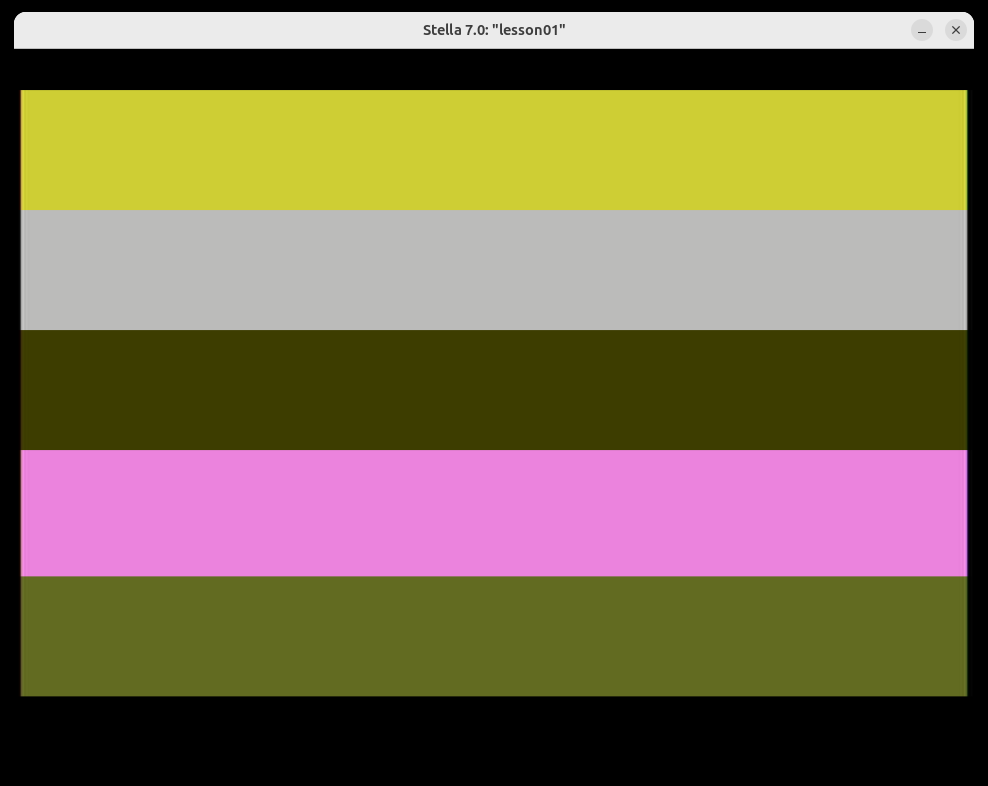
Try this in the Stella debugger (press the backtick key `):
- Look at RAM addresses
$80through$85 - You should see:
1A 0A 10 5E E5— the exact values from our bitmask operations - Change
$80to a different value and watch how all the other values (and colors) would change on the next reset
The Demo ROM
The demo ROM below creates a visual "hex color chart" — 16 rows of colors where each row shows a different hue at 8 luminance levels. This is a practical reference for the Atari 2600's NTSC color palette.
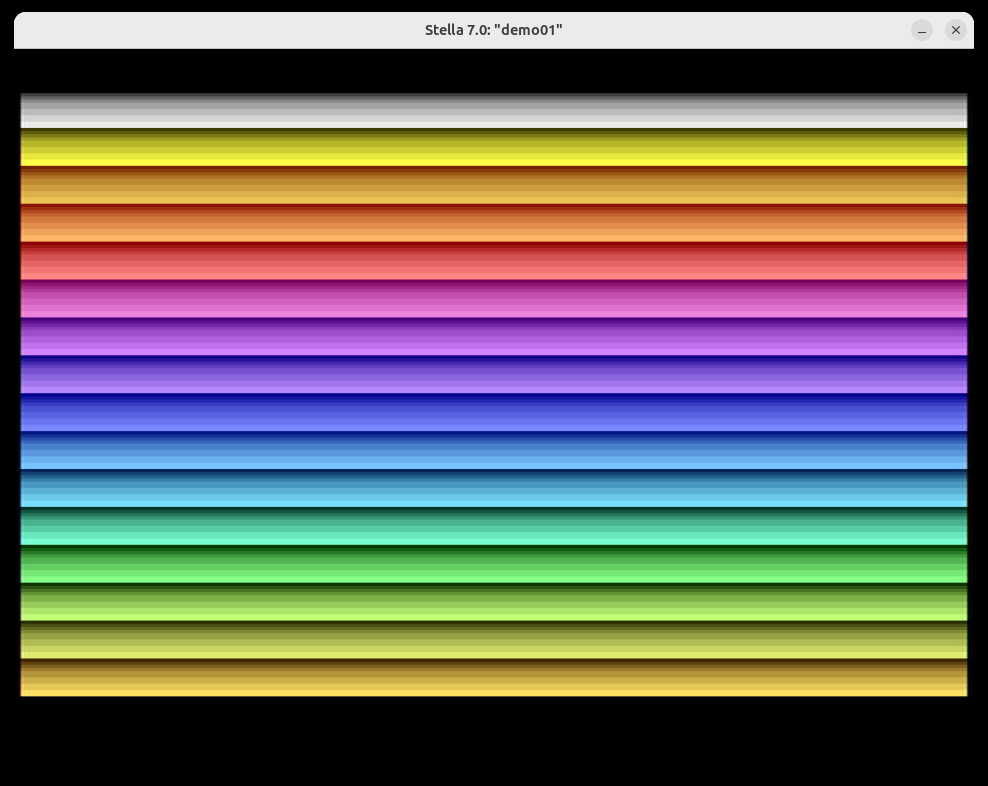
The source code for this demo is at lessons/part0-foundations/01-number-systems/demo-01.asm.
Exercises
Exercise 1: Base Conversion Practice
Challenge: Convert each of these values between all three bases. Do it on paper first — no calculators!
| Given | Find Decimal | Find Binary | Find Hex |
|---|---|---|---|
$2F | ? | ? | — |
%11001010 | ? | — | ? |
| 200 | — | ? | ? |
$80 | ? | ? | — |
%00110011 | ? | — | ? |
Hints:
- For hex to decimal: multiply each digit by its power of 16 (upper digit × 16, lower digit × 1)
- For binary to hex: split into groups of 4 bits from the right, convert each group
- For decimal to binary: repeatedly divide by 2, the remainders (bottom to top) are your bits
Expected Result:
| Given | Decimal | Binary | Hex |
|---|---|---|---|
$2F | 47 | %00101111 | $2F |
%11001010 | 202 | %11001010 | $CA |
| 200 | 200 | %11001000 | $C8 |
$80 | 128 | %10000000 | $80 |
%00110011 | 51 | %00110011 | $33 |
Exercise 2: Predict the Bitmask
Challenge: Predict the result of each bitmask operation without running the code. Then modify the ROM to verify your answers.
; What is the result of each operation?
LDA #$A7
AND #$0F        ; Result = ?

LDA #$30
ORA #$0C        ; Result = ?

LDA #$55
EOR #$FF        ; Result = ?

LDA #$FF
AND #$F0        ; Result = ?

LDA #$00
ORA #$1A ; Result = ?Hints:
- AND keeps only bits that are
1in both the value and the mask - ORA sets bits that are
1in either the value or the mask - EOR flips bits that are
1in the mask - Write out the binary for both values and apply the operation bit-by-bit
Expected Result:
$A7 AND $0F=$07(extracted lower nibble)$30 ORA $0C=$3C(combined the bits)$55 EOR $FF=$AA(all bits toggled — neat pattern!)$FF AND $F0=$F0(cleared lower nibble)$00 ORA $1A=$1A(set bits from mask into zero)
Exercise 3: Design Your Own Color Palette (Stretch Goal)
Challenge: Using what you know about the 2600 color byte format (CCCC LLL0), design a 5-color palette for a simple game. Pick colors for: sky, grass, player, enemy, and score text. Write the hex values and explain your choices.
Hints:
- Remember: upper nibble = hue (0-F), lower nibble = luminance (even values only: 0, 2, 4, 6, 8, A, C, E)
- Higher luminance = brighter.
$x0is darkest,$xEis brightest - Test your colors by modifying the ROM — put each color in a zone
Expected Result: There's no single correct answer — this is a design exercise. But your hex values should produce visually distinct, appropriate colors when tested in Stella. For example:
- Sky:
$96(blue, medium brightness) - Grass:
$C6(green, medium brightness) - Player:
$0E(white/bright gray) - Enemy:
$46(red, medium brightness) - Score:
$0A(light gray)
Key Takeaways
- ✅ Binary (
%) has 2 digits (0, 1). Each position is a power of 2. Eight bits = one byte (0–255) - ✅ Hexadecimal (
$) has 16 digits (0–F). Each hex digit = exactly 4 bits (one nibble). Two hex digits = one byte - ✅ AND masks extract bits (keep only what you want). OR masks set bits. EOR masks toggle bits
- ✅ The Atari 2600 encodes colors as
CCCC LLL0— hue in the upper nibble, luminance in bits 1-3 - ✅ Hex makes bit patterns visible —
$FFis obviously "all bits on" while255is not
What's Next
In Lesson 02: Meet Stella — Your Debugger and Best Friend, you'll learn to use the Stella emulator's built-in debugger. You'll step through code instruction by instruction, watch registers change in real-time, and inspect the exact RAM values that this lesson's bitmask operations produce. The debugger is where hex knowledge becomes truly powerful — you'll see every byte in its natural habitat.